GitHub
Connect your GitHub repositories to v0 to automatically create projects and track changes.
v0 allows you to connect your chats with GitHub for:
- Version Control: Track and revert code changes
- Collaboration: Work on the same codebase together
- CI/CD: Deploy automatically when pushing to Git
- Pull Requests: Review changes before merging
Team plans: By default, team members must have access to a GitHub repository to collaborate on its associated chat and generate previews. To allow members without GitHub access to participate, enable Allow v0 to Act on Behalf of Members in your workspace settings. See Teams → GitHub repository access for details.
How v0 works with Git
When you connect a chat to GitHub, v0 automatically creates a branch off main for you to work on. This keeps your main branch protected while you iterate.
- Automatic branching: v0 creates a dedicated branch (e.g.,
v0/main-abc123) for each chat - Auto-commits: Every message you send that changes code automatically creates a commit
- Protected main: v0 never pushes directly to
main, so your production code stays safe - Merge when ready: When you're done, create a PR and merge your changes
This means you can focus on building without worrying about Git commands or accidentally breaking your main branch.
If you used v0's previous Git integration, the new workflow is fully automatic. No manual commits or branch management needed.
Connecting to GitHub
Important: Once a GitHub repository is connected, it becomes the source of truth for your project. v0 does not store a separate copy of your code. If the repository is deleted from GitHub, your code may become unrecoverable.
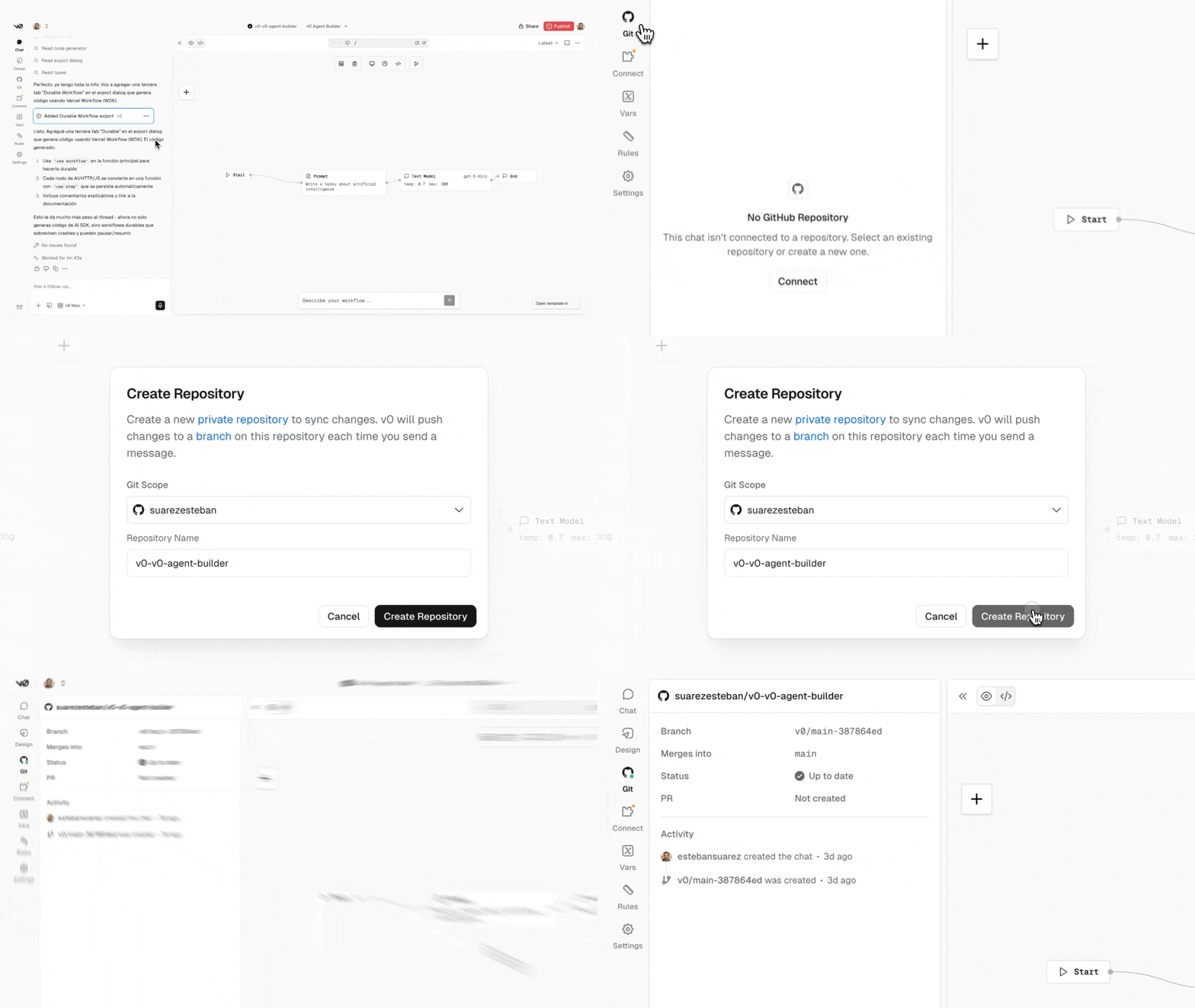
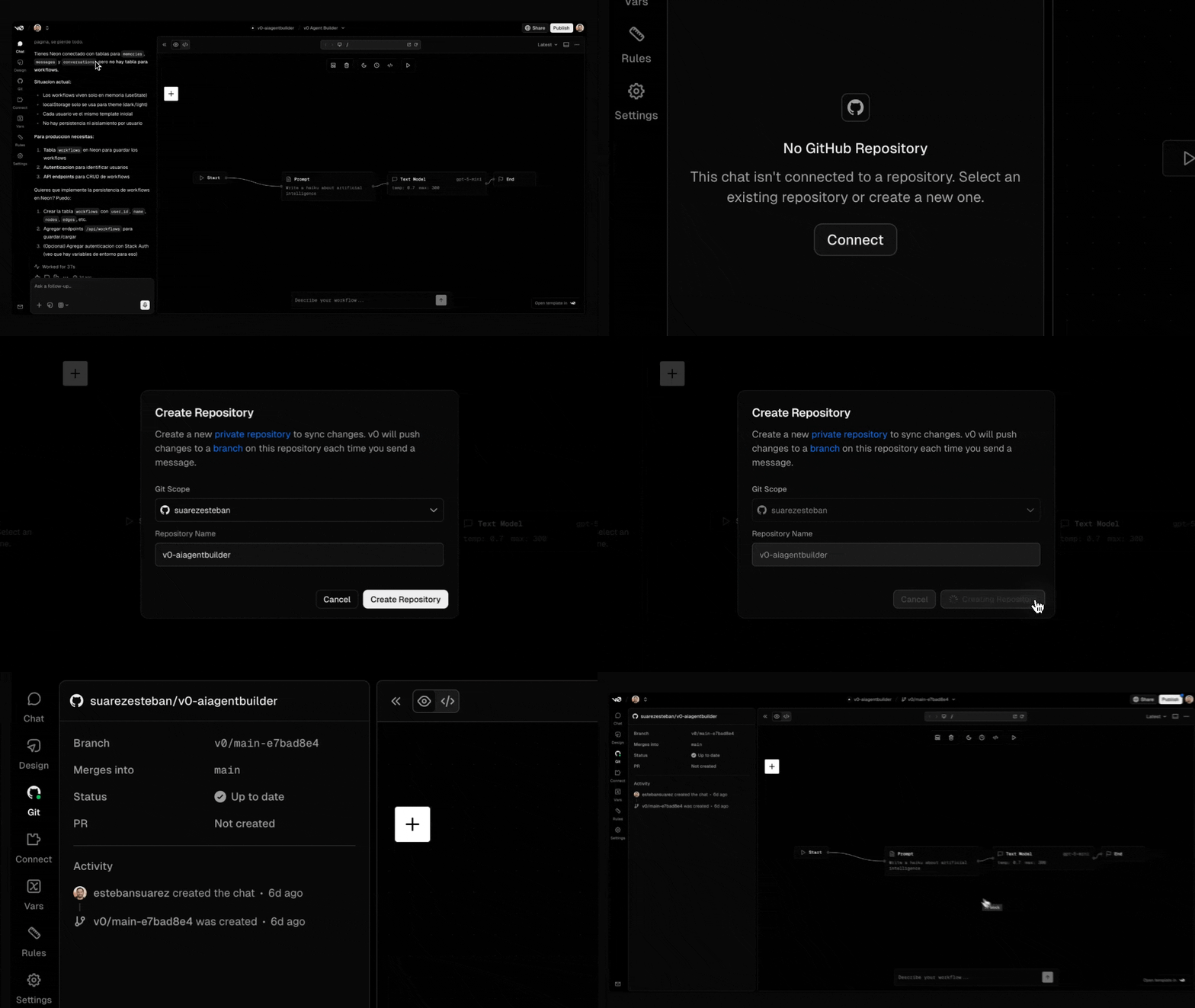
To connect your chat to GitHub:
- In the sidebar panel, click on the Git section.
- Click Connect to start the connection process.
- In the Create Repository modal, select your Git Scope (the GitHub account or organization) and enter a Repository Name.
- Click Create Repository to link your chat to a new private GitHub repository.
You can also manage your GitHub connection from the Project Menu ... in the same top right of the chat UI.
Once connected, you'll see information about your repository including:
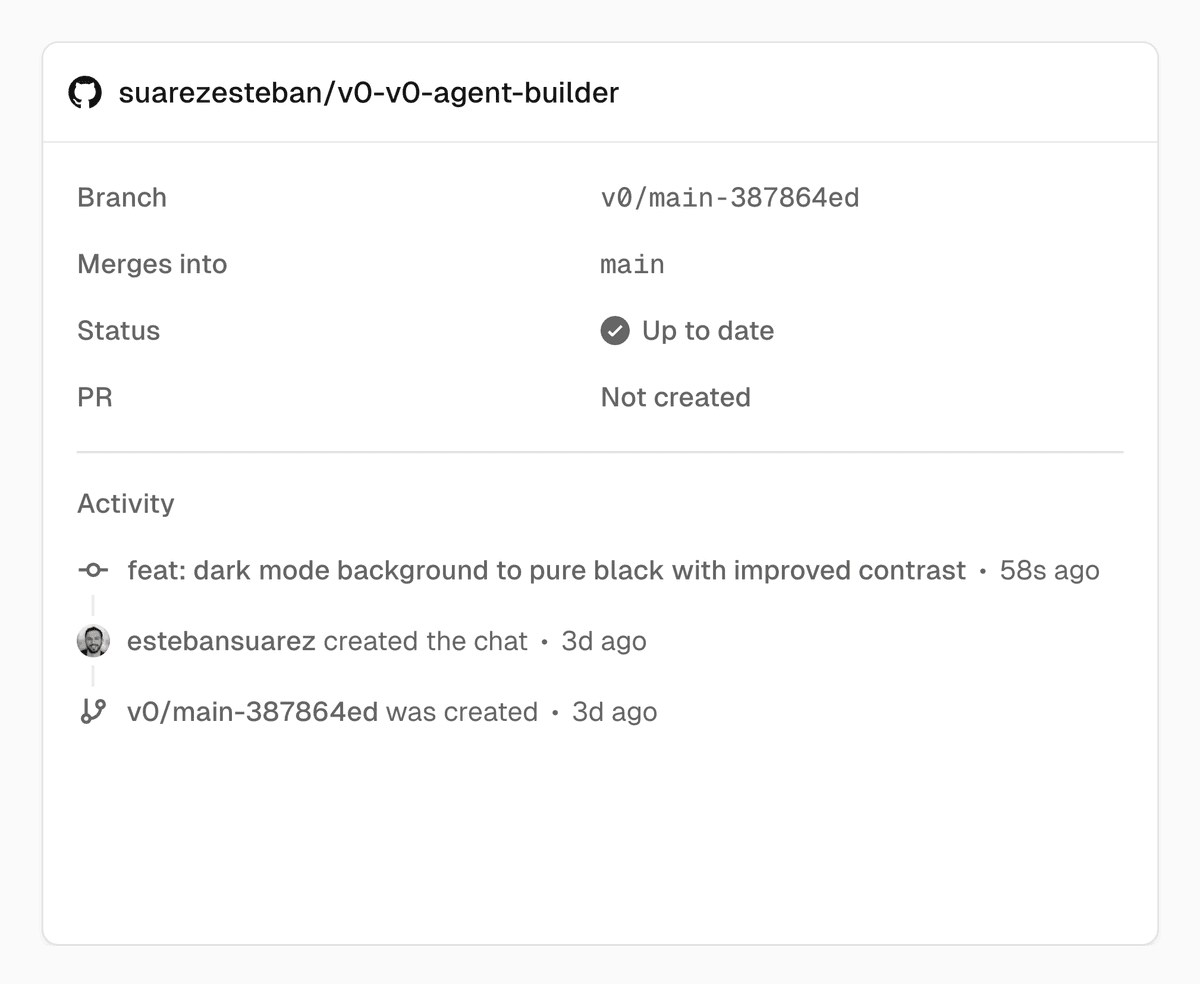
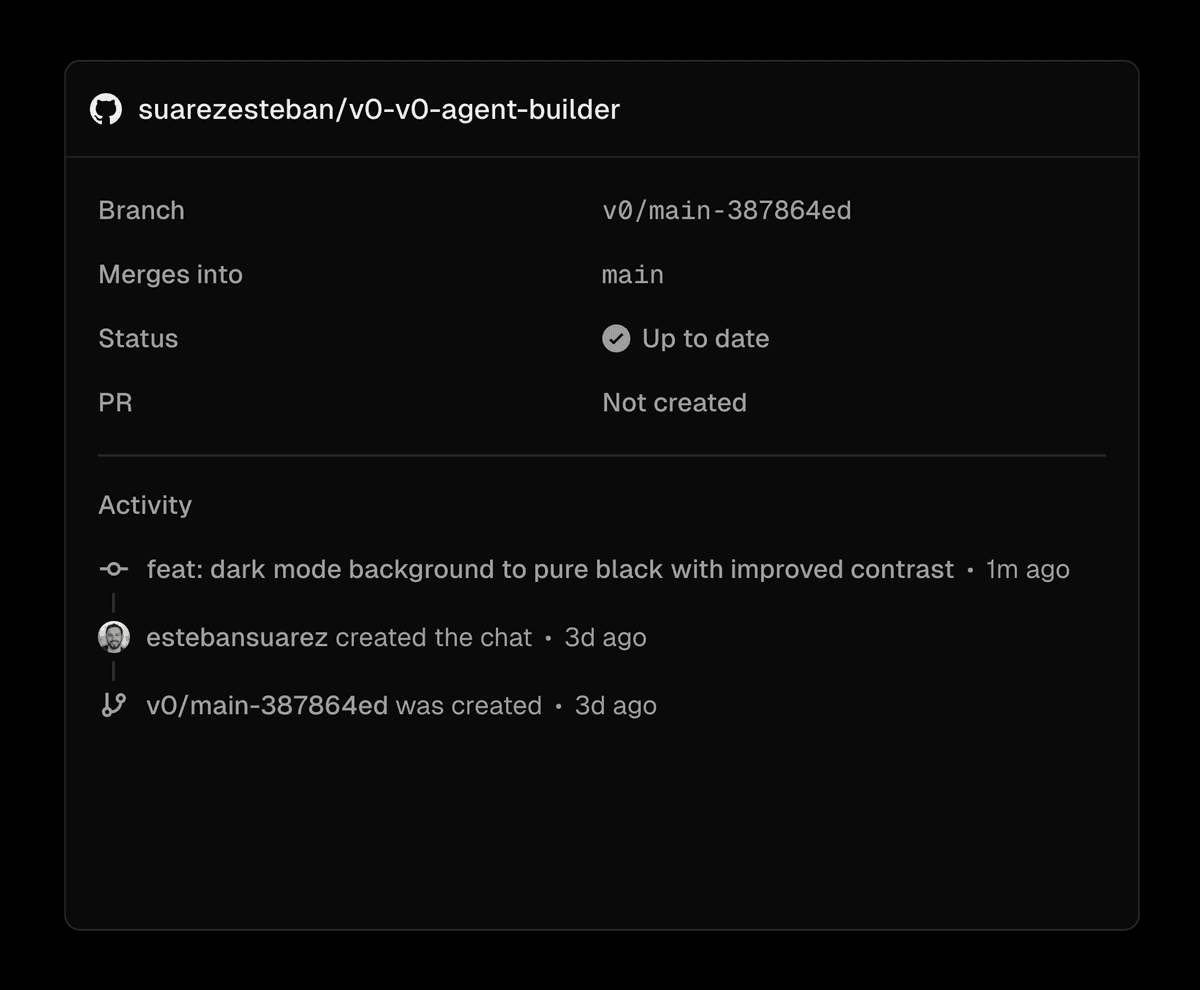
- Branch: The current working branch (e.g.,
v0/main-e7bad8e4) - Merges into: The target branch for merging (typically
main) - Status: Whether your branch is up to date
- PR: The status of any open pull request
- Activity: A timeline of changes and commits
Creating a Pull Request
When you're ready to merge your changes:
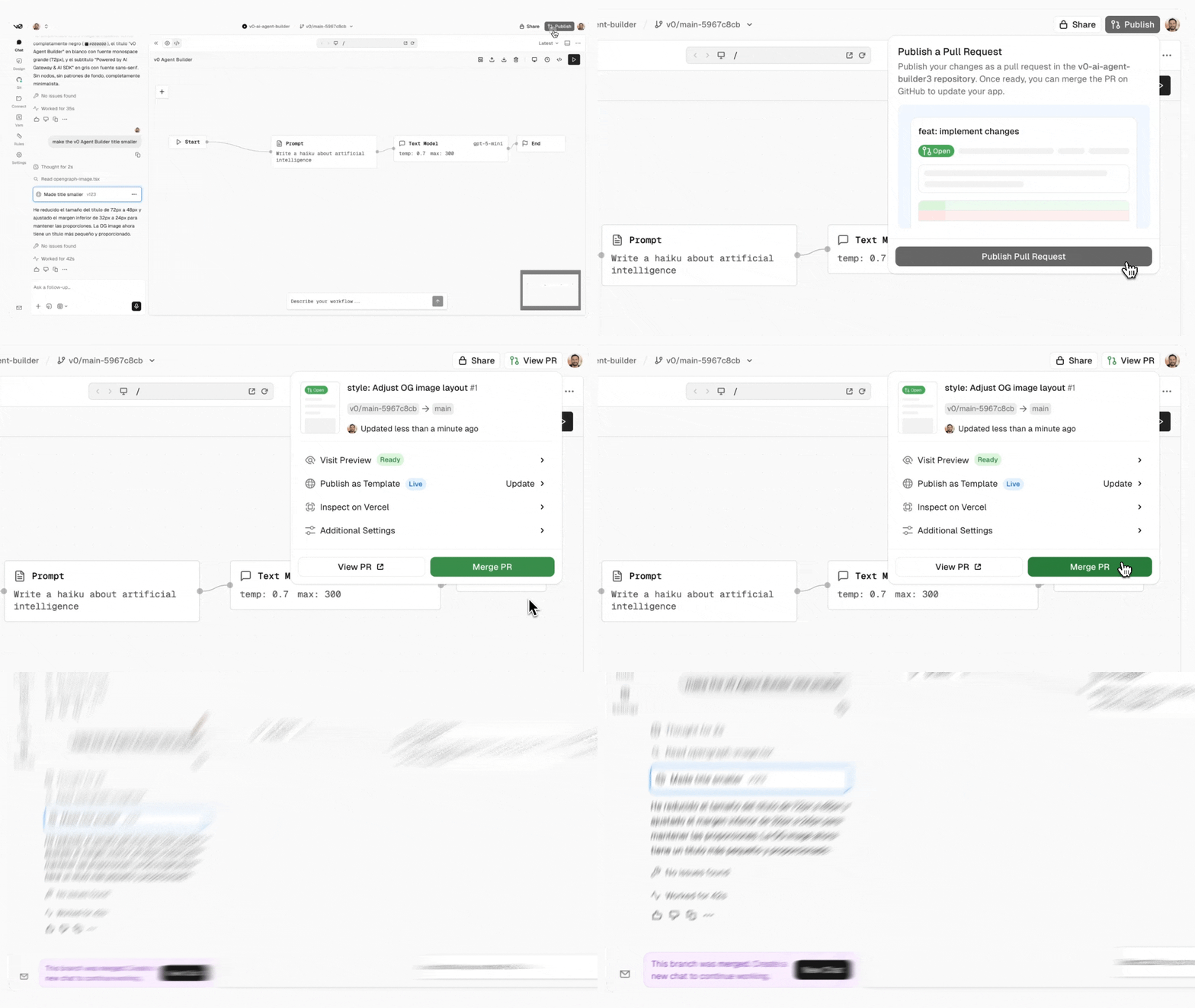
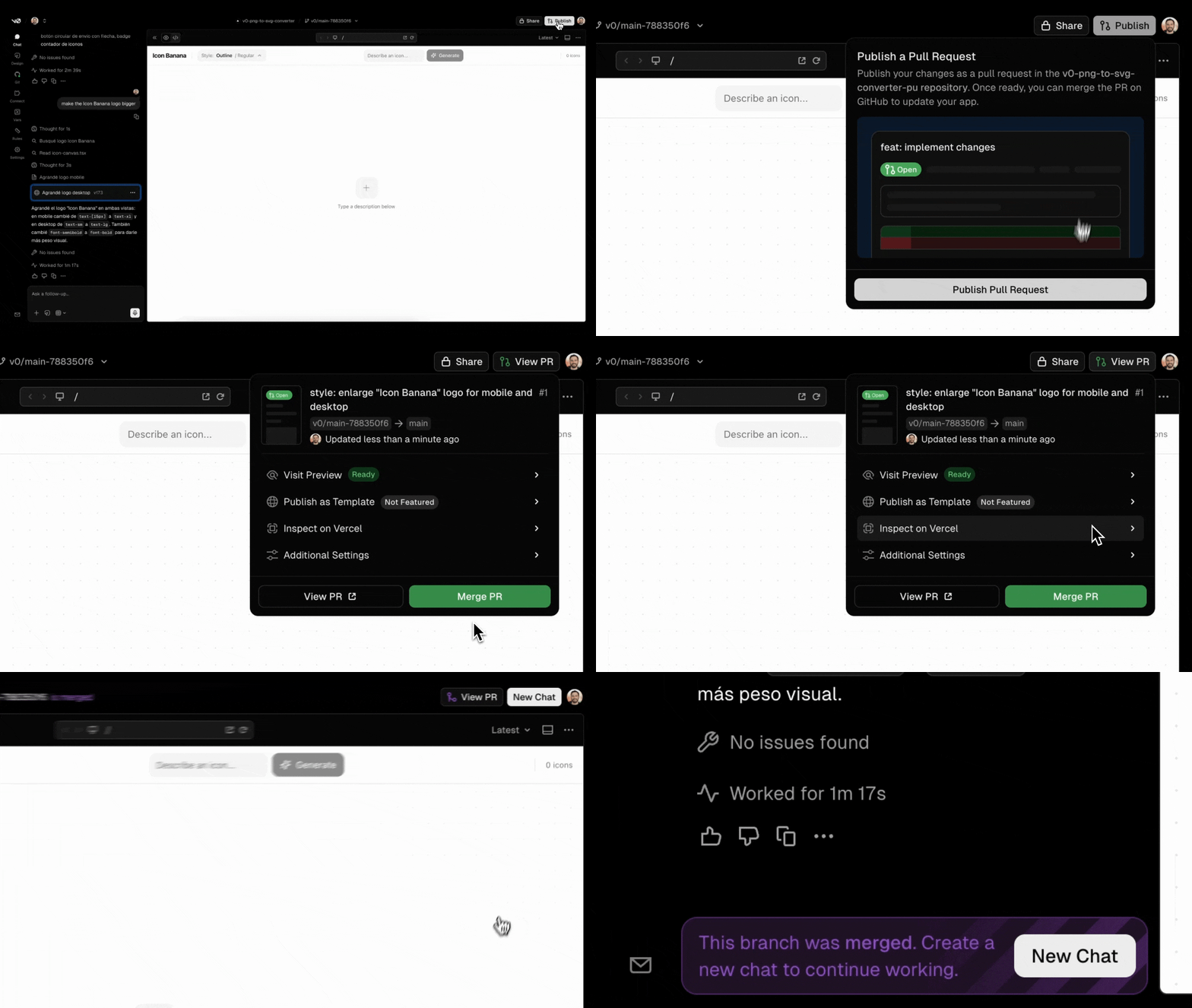
- Click the Publish button (which now shows a PR icon when connected to GitHub).
- Select Open PR to create a pull request from your working branch to
main. - The publish modal will update to show your open PR with options to View PR or Merge PR.
Merging and continuing work
After merging your PR:
- Your current chat branch is merged into
main. - To continue working, click New Chat to create a new branch.
- Each new chat acts as a new feature branch where you can make changes.
- When ready, create another PR and repeat the process.
Creating branches
v0 supports flexible branching workflows:
- Branch from main: Create a new chat to start a fresh branch off
main - Branch from a branch: Click the branch name in the chat header, select Duplicate Branch..., then choose whether to continue in the same project or start a new one
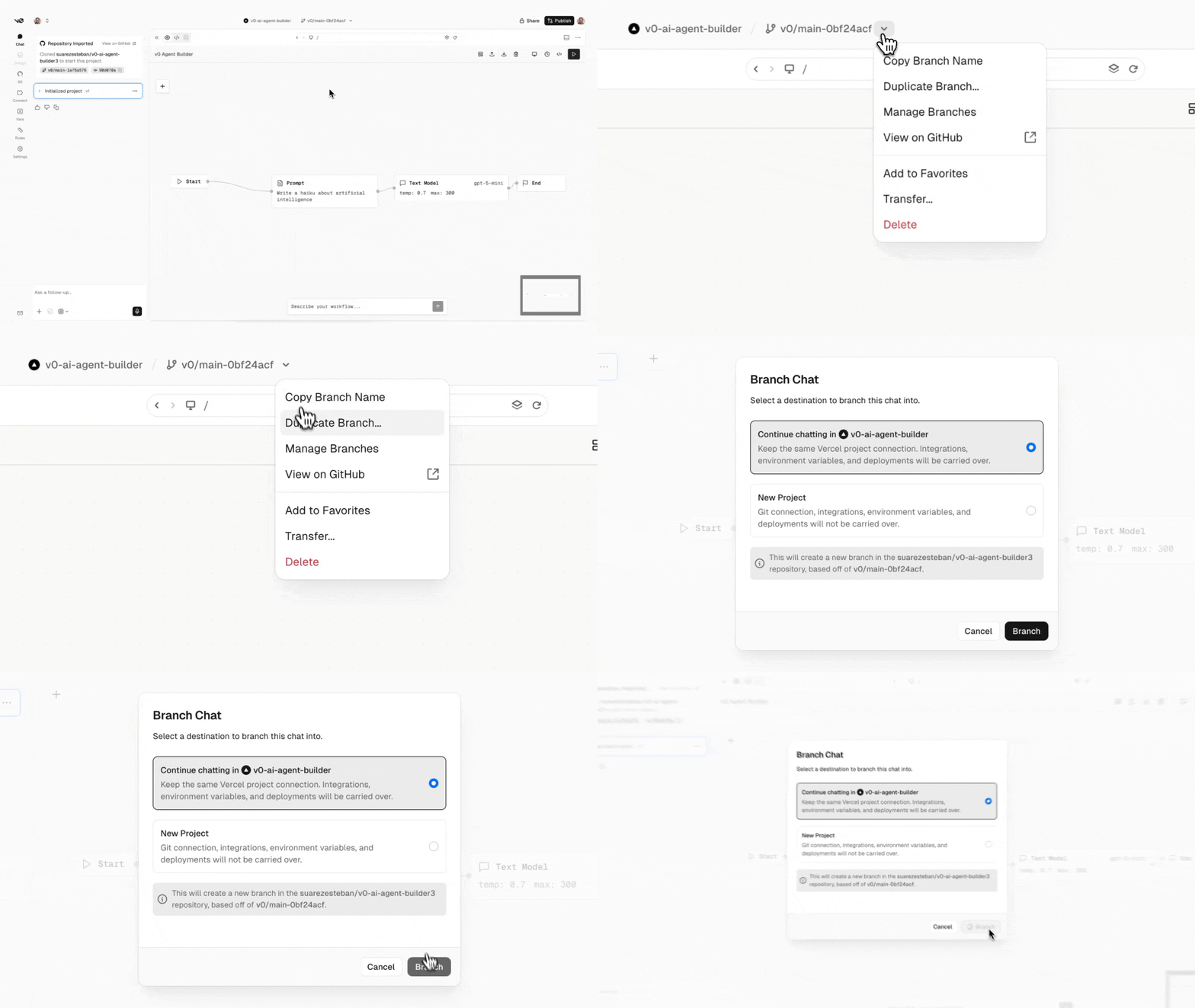
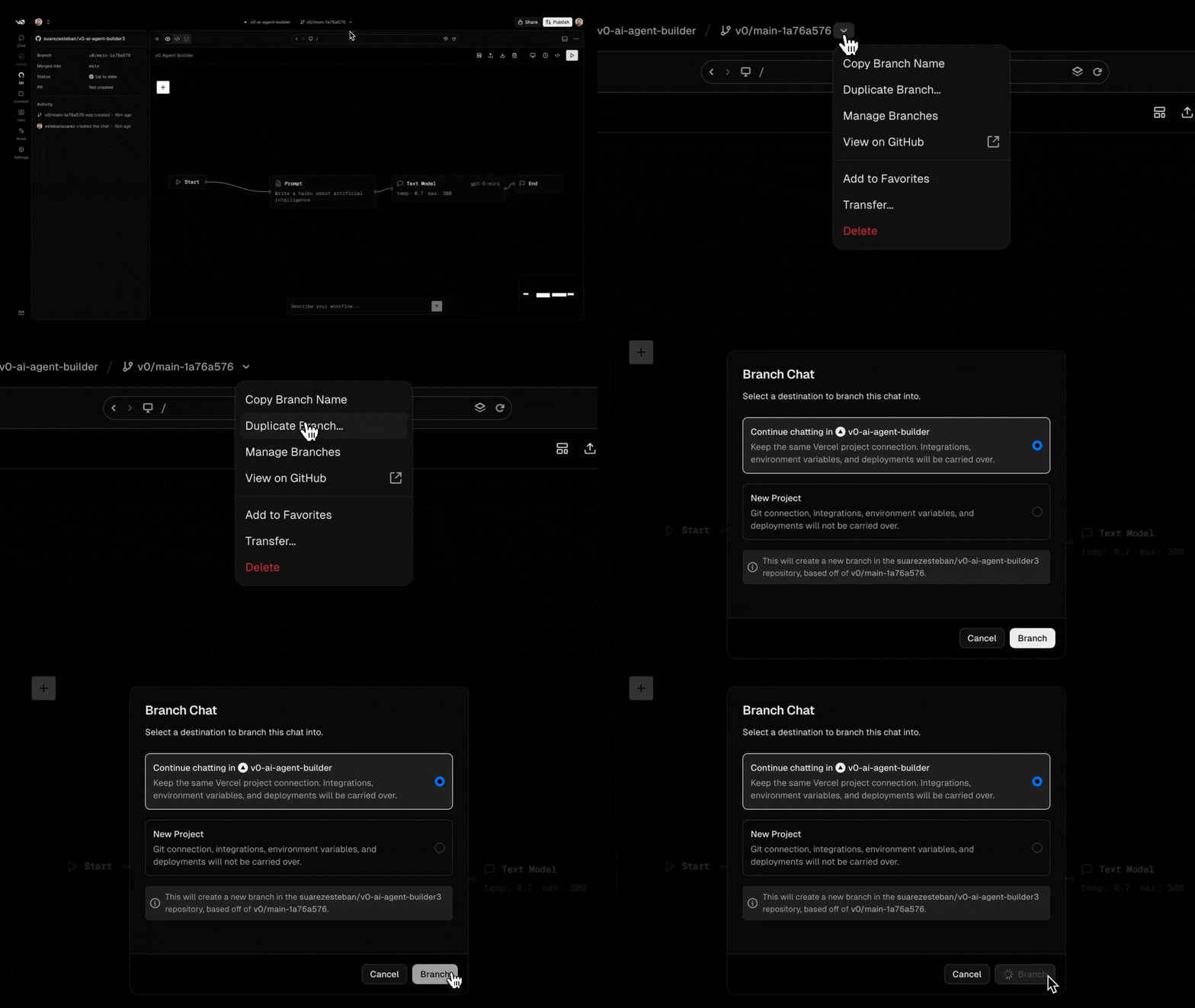
When duplicating a branch, you can:
- Continue chatting in the same project: Keeps the Vercel project connection, integrations, environment variables, and deployments
- New Project: Starts fresh without carrying over the existing configuration
Enhanced branch creation features are coming soon, giving you more control over your branching workflow.